
WordPress Single Sign-On with Microsoft Entra ID (SAML)
Shakewell ·

When editors sign in to WordPress with a WordPress password, the organisation loses control of who has access. People leave, passwords get shared, and nobody checks the user list. Single sign-on moves that decision to the identity provider you already run. For many Australian organisations that is Microsoft Entra ID, the product formerly called Azure AD.
This guide covers WordPress single sign-on with Entra ID over SAML 2.0 using shakewell-saml-sso, a plugin we wrote and maintain. It is one of our open-source WordPress plugins. It covers what you gain, how to set up the Entra side, how to configure the plugin exactly as its readme documents, how to test, and how it fails. Version 0.1.1 is an early release, so test on staging first.
What SAML sign-in gives an organisation
- One account. Editors use their company account to reach wp-admin, so leaving the company ends access when the identity provider ends it.
- The identity provider’s controls. Whatever Entra enforces at sign-in, such as multi-factor authentication or conditional access, applies before WordPress is reached. Those are configured in Entra, not in the plugin.
- A narrower door. In Entra you can require assignment, so only people or groups you choose can use the application. This sits alongside the checks in our WordPress hardening checklist, which lists 2FA or SSO for privileged users.
- Roles from groups. New users can be given a WordPress role from their Entra group.
What it does not give you is a replacement for good hosting, patching or a maintenance plan. It controls who signs in, not how the site is run.
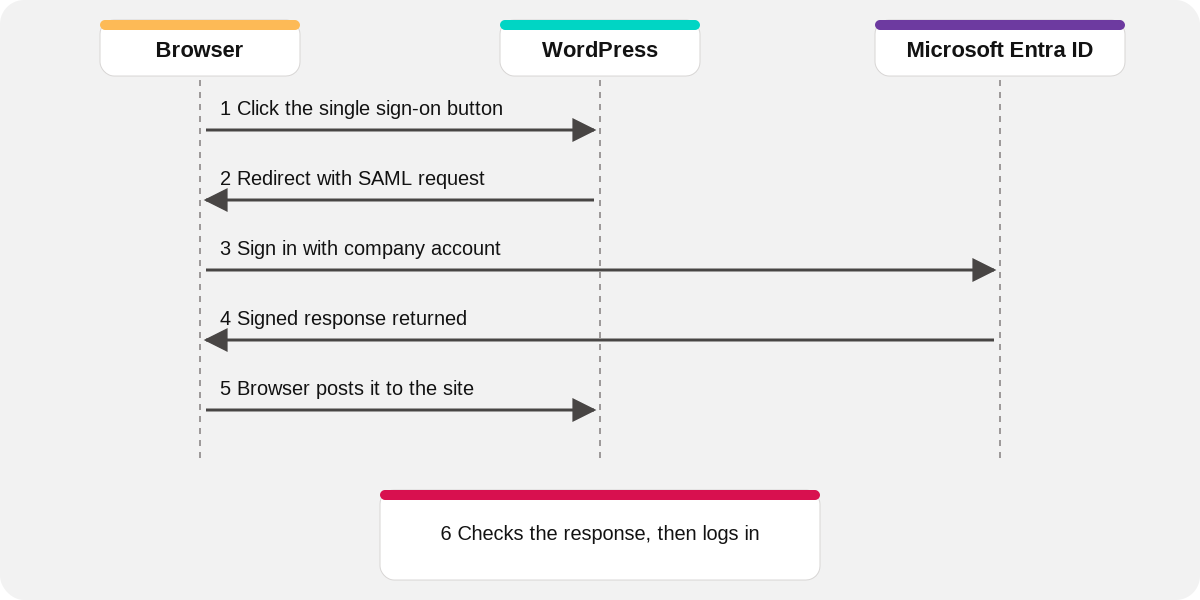
What the plugin is, and is not
shakewell-saml-sso is a small, strict SAML 2.0 service provider built on the maintained onelogin/php-saml library. Signature and certificate checks are done by that library, never by code in the plugin. It needs WordPress 6.5 or later, PHP 8.1 or later and the PHP extensions openssl, dom and xml. The release zip bundles the libraries.
What it does:
- Adds a “Sign in with single sign-on” button to the login form and answers the identity provider’s response.
- Matches the person to an existing user by a stored provider id, then by login (the NameID), then by email.
- Creates unknown users only if you turn that on, and never as an administrator.
- Can limit sign-in to a list of email domains, and publishes service provider metadata for the identity provider’s admin.
What it deliberately does not do: it has no settings screen, no options and no database tables. Every setting is a constant or environment variable, so nothing secret or security-relevant is editable from wp-admin. It does not replace or redirect wp-login.php. It needs no certificate or private key of its own. It has no tracking and no calls home.
It is also off by default. Nothing happens until SHAKEWELL_SAML_SSO_ENABLED is true and the required settings are present.
Step 1: create the enterprise application in Entra
The following follows the plugin’s readme and Microsoft’s documentation as at 29 November 2026. Menu names change, so check them against your tenant. You need at least the Cloud Application Administrator role.
- In the Microsoft Entra admin center, go to Entra ID > Enterprise apps > All applications, select New application, then Create your own application, and choose Integrate any other application you don’t find in the gallery (Non-gallery).
- Under Manage, select Single sign-on, then SAML.
- In Basic SAML Configuration, select Edit. Set Identifier (Entity ID) to the value you will use for
SP_ENTITY_ID(by default your site address, for examplehttps://example.com). Set Reply URL (Assertion Consumer Service URL) to the value ofACS_URL(by default the site root,https://example.com/). Enter both by hand on the first pass. The plugin also serves a metadata file athttps://example.com/wp-login.php?action=shakewell_saml_sso_metadata(use your own login address), but only once it is enabled and the three required identity provider settings from Step 2 are present, so it is useful for later changes, not for first setup. - In Attributes & Claims, keep the default claims (email address, given name, surname, user principal name) and add the object identifier claim if it is missing. For groups, add a group claim sent as group ids.
- In SAML Certificates, keep Sign SAML assertion, or choose Sign SAML response and assertion. Leave encryption off. Download Certificate (Base64).
- In the Set up section, copy Login URL, Microsoft Entra Identifier and, optionally, Logout URL.
- Under Properties, set Assignment required to Yes, then assign the people or groups who may sign in under Users and groups.
Two Microsoft details are worth knowing. Group-based assignment requires Microsoft Entra ID P1 or P2, and Microsoft documents that nested groups are not supported for assignment. And Microsoft documents that the number of groups emitted in a SAML token is limited to 150. Past that, Entra omits the group claim entirely. The recommended fix is the Groups assigned to the application option, which emits only groups explicitly assigned to the app. Note that the assignment requirement does not apply to Global Administrators, so do not use one as your only test account.
Step 2: configure the plugin
Install the release zip from the GitHub repository, activate it, and add the settings to wp-config.php or the server environment. A constant wins over an environment variable. The example in the readme:
define( 'SHAKEWELL_SAML_SSO_ENABLED', true );
define( 'SHAKEWELL_SAML_SSO_IDP_ENTITY_ID', 'https://sts.windows.net/TENANT-ID/' );
define( 'SHAKEWELL_SAML_SSO_IDP_SSO_URL', 'https://login.microsoftonline.com/TENANT-ID/saml2' );
define( 'SHAKEWELL_SAML_SSO_IDP_CERTS', 'MIIC...base64 of the certificate...' );
define( 'SHAKEWELL_SAML_SSO_AUTO_CREATE', true );
define( 'SHAKEWELL_SAML_SSO_DEFAULT_ROLE', 'editor' );| Setting | Required | Entra value or default |
|---|---|---|
IDP_ENTITY_ID |
Yes | “Microsoft Entra Identifier” |
IDP_SSO_URL |
Yes | “Login URL” |
IDP_CERTS |
Yes | The downloaded certificate; several can be listed, comma-separated |
IDP_SLO_URL |
No | “Logout URL”; without it, logging out only ends the WordPress session |
SIGNED_ELEMENT |
No | assertion by default; response if only the response is signed |
SP_ENTITY_ID, ACS_URL |
No | Default to the site address and the site root |
EMAIL_ATTR, FIRST_NAME_ATTR, LAST_NAME_ATTR, ID_ATTR, GROUP_CLAIM |
No | Defaults are the Microsoft claim URIs |
AUTO_CREATE |
No | false by default |
DEFAULT_ROLE |
No | subscriber by default |
ROLE_MAP |
No | Group id to role, as JSON or a PHP array |
ALLOWED_DOMAINS |
No | Comma-separated email domains; empty means any |
Check that the local login still works before you set ENABLED to true.
Role mapping and local passwords
Existing users keep their roles. ROLE_MAP is used only when a user is created: the new user gets the role of the first mapped group they belong to, otherwise DEFAULT_ROLE. A map looks like {"group-id":"editor"}, using the group’s object id from Entra. The plugin never creates an administrator from a sign-in, so your administrators must already exist or be promoted by hand.
Local passwords are not touched. The normal login form keeps working, which the readme calls your emergency way in. Users the plugin creates are given a random 40-character password (we read this in the source, not the readme), so they sign in through SSO. The plugin also stores a provider id on first sign-in and then requires it to match, which is why ID_ATTR should point at a stable claim, by default Entra’s object id.
Step 3: test it
Open a private window and go to the WordPress login form. Choose the single sign-on button, sign in with an assigned test account that is not a Global Administrator, and confirm you land in wp-admin with the expected role. Then try an unassigned account, which Entra should refuse.
Start from the WordPress button. The plugin accepts a response only if it answers a sign-in this site started, so a sign-in begun from Entra’s test button or a My Apps tile should be refused. That is our reading of the readme and the source, so check it in your tenant.
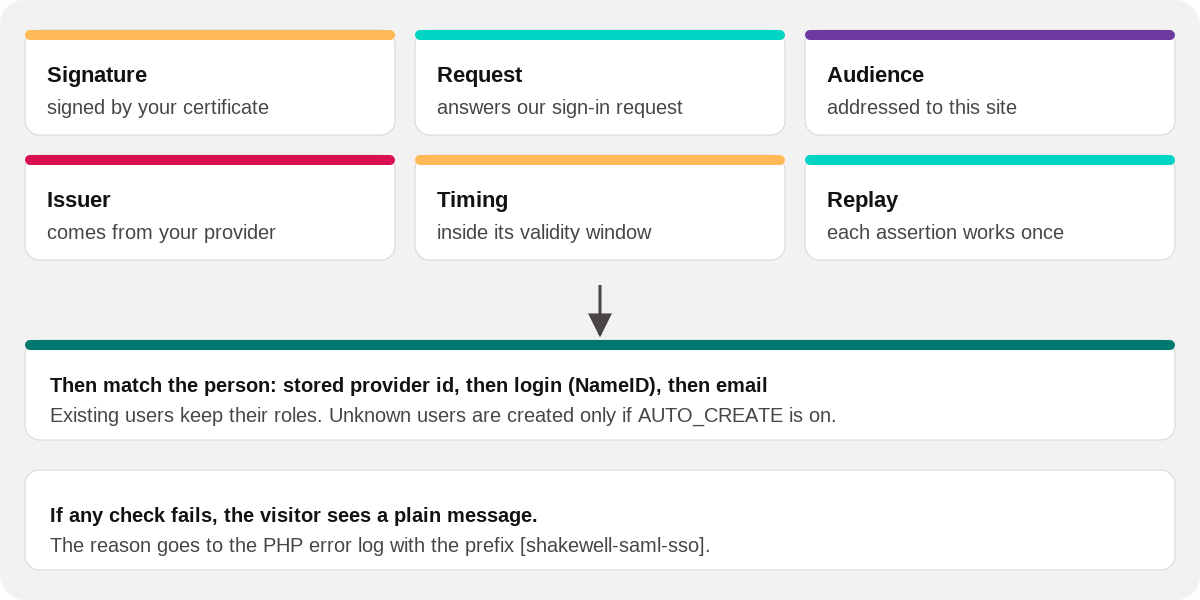
How it fails, and what to do
The visitor sees a plain message. The reason goes to the PHP error log with the prefix [shakewell-saml-sso], and the log never contains names, email addresses or user ids.
| Symptom | Likely cause | What to do |
|---|---|---|
| Every sign-in refused after a while | The signing certificate rolled over | Add the new certificate to IDP_CERTS (see below) |
| Refused, and the PHP error log points at timing | Server clock differs from Entra’s | The plugin tolerates 60 seconds of drift on top of the assertion’s own window. Fix time sync on the server |
| Refused for the signature | SIGNED_ELEMENT does not match what Entra signs |
Set response if only the response is signed |
| Signed in, wrong role | ROLE_MAP runs only at creation, or Entra omitted the group claim |
Change the role by hand; use “Groups assigned to the application” |
| Refused for a domain | ALLOWED_DOMAINS is set and the email is not on it, or missing |
Add the domain or include the email claim |
| Sign-in does nothing while miniOrange is active | The plugin stays inert while that plugin is active | Deactivate it, then enable this one |
Certificate rollover
Entra creates a self-signed certificate valid for three years by default and emails a notice 60, 30 and 7 days before it expires. The readme’s rollover has four steps:
- In Entra, create a new SAML signing certificate without making it active, and download its base64 text.
- Add it to
IDP_CERTSnext to the current one, comma-separated or as two PEM blocks, and deploy. Both are now trusted. - In Entra, make the new certificate active (Make certificate active in the certificate’s menu).
- Check sign-in works, then remove the old certificate and deploy again.
Doing it in this order means there is no moment when sign-in is down.
Locked out
The plugin never replaces wp-login.php, so a local administrator can still sign in with a password. To switch single sign-on off at once, set SHAKEWELL_SAML_SSO_ENABLED to false or remove it. If you are locked out of every account, the readme’s documented recovery is WP-CLI on the server, for example wp user update ADMIN --user_pass=NEW. Keep at least one administrator with a working local password and a note of who holds it.
Where this fits
SAML sign-in is one control among several. If you want it set up alongside the rest of a hardening pass, see our WordPress development work. If sign-in was a reason for choosing WordPress over something else, is WordPress enterprise-ready puts the wider question straight.
Sources: the shakewell-saml-sso readme.txt, README.md and source, read on 29 November 2026; Microsoft Learn on enabling SAML single sign-on, managing federation certificates, group claims, assigning users and groups and restricting an app to a set of users, checked the same day. Microsoft and Entra are trademarks of Microsoft. The plugin is not affiliated with, endorsed by or sponsored by Microsoft.
Common questions
Can WordPress use Microsoft Entra ID for single sign-on?
Yes, through SAML 2.0. WordPress acts as the service provider and Entra ID as the identity provider. Our open-source shakewell-saml-sso plugin adds a sign-in button to the WordPress login form and checks the signed response Entra ID sends back. It also works with other SAML 2.0 identity providers.
Does SAML sign-in turn off WordPress passwords?
No. The plugin never replaces or redirects wp-login.php, so the normal username and password form keeps working. That is deliberate, because it is your way in if the identity provider is down or misconfigured. Keep at least one administrator with a working local password.
Can SSO create WordPress administrators automatically?
No. If you turn on user creation, new users get a default role or a role mapped from their Entra groups, and the plugin refuses to create an administrator from a sign-in. Existing users keep the roles they already have.
What happens when the Entra signing certificate expires?
Sign-in fails until WordPress trusts the new certificate. Microsoft emails a warning 60, 30 and 7 days before expiry. Add the new certificate to the plugin's certificate list next to the old one, activate it in Entra, confirm sign-in works, then remove the old one.
Is the plugin ready for production?
It is an early release (version 0.1.1) built on the maintained onelogin/php-saml library. Test it on staging with a real Entra tenant, keep a local administrator for emergencies, and read the readme before you enable it.